| 5.4. Fejlkonsol | ||
|---|---|---|

|
5. Misc. Dialogs |  |
| 5.4. Fejlkonsol | ||
|---|---|---|
|
|
5. Misc. Dialogs | |
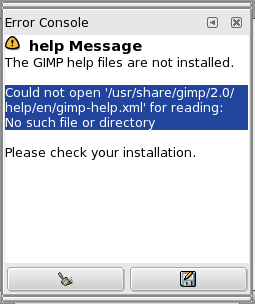
The Error console offers more possibilities than the single “GIMP Message”. This is a log of all errors occurring while GIMP is running. You can save all this log or only a selected part.
The “Error Console” dialog is a dockable dialog; see the section Afsnit 2.3, “Dialogs and Docking” for help on manipulating it.
You can access it:
from an image menu: → → ;
from the Tab menu in any dockable dialog by clicking on
 and selecting
→ .
and selecting
→ .
 Clear errors
This button lets you delete all errors in the log.
![[Advarsel]](images/warning.png)
|
Advarsel |
|---|---|
|
You can't “undo” this action. |
 Save all errors
This button lets you save the whole log. You can also select a part of the log (by click-and-dragging the mouse pointer or by using the Shift+arrow keys key combination) and save only this selected part by pressing the Shift key.
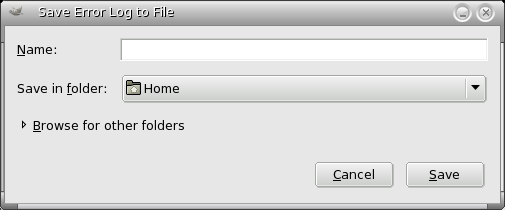
A dialog window Save Error Log to File lets you choose the name and the destination directory of this file:
![[Vink]](images/tip.png)
|
Vink |
|---|---|
|
You will as well find these button actions in the dialog tab menu by
clicking on
|