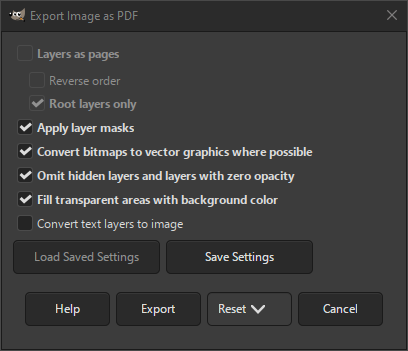
You can export your image in PDF format when you choose the «.pdf» extension, or explicitly choose «Portable Document Format» as file type in the export dialog.
- Layers as pages
-
When checked, creates a page for each layer in your image, starting from the bottom layer. This setting is disabled when you only have one layer.
- Reverse order
-
When checked, the pages are created in reverse order, starting from the top.
- Root layers only
-
When checked, only the layers not inside a group will be used to create pages. Groups at the root level will be included by merging the layers inside them.
- Apply layer masks
-
When checked, applies the layer mask before saving. This does not change the PDF output, only the internal structure of the PDF.
- Convert bitmaps to vector graphics where possible
-
When checked, vector graphics will be used instead of bitmaps, where possible.
- Omit hidden layers and layers with zero opacity
-
When checked, layers that have visibility turned off, or where the opacity of the layer is set to zero, will be ignored when creating the page or pages.
- Fill transparent areas with background color
-
When checked, if there are transparent areas, it will replace those with the background color.
- Convert text layers to image
-
When checked, text layers will be converted to raster graphics instead of including it as actual text. This can be useful if the font used for the text cannot be found by the PDF exporter and thus not included in the PDF. If the font is not included in your PDF, there is no guarantee that the text will look the same to someone else.


