The Free Selection tool, lets you create a selection by drawing it with the pointer.
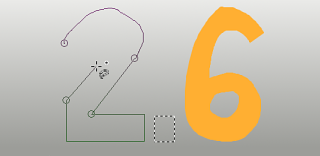
Si può usare questo strumento in due modi. Prima si crea il punto iniziale facendo clic sull'immagine. Poi,
-
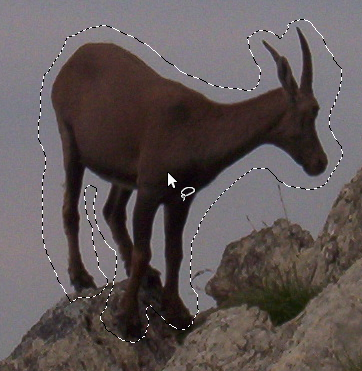
Keep the mouse button pressed (i.e click-and-drag), drag to draw a freehand selection. When the end point is on top of the starting point, release the mouse button to close the selection.
Se si fa clic sul punto finale, compare accanto una croce. Quindi, trascinando si allarga la forma.
-
Or release the mouse button and drag to draw a polygonal selection. When the end point is on top of the starting point, click to close the selection.
Press the Ctrl key and click on the end point: moving the mouse pointer forces moving angles to 15°; so, you can draw horizontal or vertical lines easily.
In entrambi i casi, il doppio clic sul punto finale chiude la selezione con una linea retta.
In modalità poligonale, questa selezione è una selezione preliminare; il tratteggio è in movimento, ma il piccolo cerchietto giallo è ancora presente: si può copiare la selezione e, premendo il tasto Backspace, si può tornare al passo di selezione precedente (ri-apre la forma), e si può modificare la selezione.
Premere Invio o fare doppio clic dentro la forma per validare la selezione.
Premendo e rilasciando il pulsante del mouse permette di mescolare segmenti a mano libera e poligonali. Si può andare fuori dal bordo dello schermo immagine e tornare dentro se lo si desidera.
Free Select is often a good tool to use for «roughing in» a selection; it is not so good for precise definition. Experienced users find that it is often convenient to begin with the Free Select tool, but then switch to Quick Mask mode for detail work.
Per informazioni sulle selezioni e su come vengono usate in GIMP vedere le selezioni. Per informazioni sulle caratteristiche comuni a tutti questi strumenti vedere gli strumenti di selezione.
![[Nota]](images/note.png)
|
Nota |
|---|---|
|
Lo strumento di Selezione libera è molto più facile da usare con una tavoletta grafica che con un mouse. |
Esistono diverse possibilità per attivare lo strumento:
-
Dal menu principale tramite → → .
-
By clicking the tool icon
 in the Toolbox.
-
Premendo la scorciatoia da tastiera F.
Lo strumento di Selezione Libera non ha tasti modificatori specifici, solo quelli che influenzano tutti gli strumenti di selezione allo stesso modo. Consultare la sezione strumenti di selezione.
Backspace rimuove l'ultimo segmento disegnato, Esc cancella tutti i segmenti della selezione.
Per spostare la selezione, vedere Spostamento selezioni.
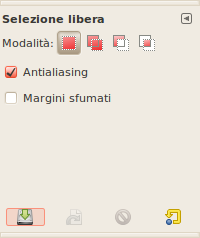
Normally, tool options are displayed in a window attached under the Toolbox as soon as you activate a tool. If they are not, you can access them from the main menu through → → which opens the option window of the selected tool. The available tool options can also be accessed by double clicking the corresponding tool icon in the Toolbox.
- Modalità, Antialias, Feather edges
-
Nota Consultare Opzioni strumenti di selezione per un aiuto a comprendere il funzionamento delle opzioni comuni a tutti questi strumenti. Qui vengono spiegate soltanto le opzioni specifiche di questo strumento.
Marching ants come with a continuous line, meaning that the selection is not validated yet and that you can still change the selection shape (mouse pointer comes with the Move icon). But you can't use (holding it pressed) Shift, Ctrl yet. You have to hit the Enter key. Then you can use (holding them pressed) Shift to add a selection, Ctrl to subtract a selection, Shift + Ctrl to intersect two selections. When you are satisfied with your changes, hit Enter key to validate the selection.


