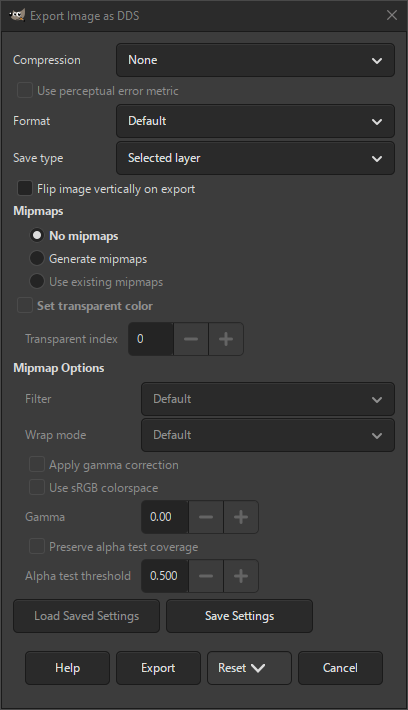
The DDS file format is often used in games for storing textures and environment maps. It supports both compressed and uncompressed textures.
In most cases game engines require the texture dimensions to be a power of two, but width and height do not need to be the same. Common values are 64, 128, 256, 512, etc.
- Compression
-
The type of compression to use. When set to None, the non-compressed format can be selected from Format.
Usually games only support some of the compressed and non-compressed formats. Check the game documentation which modes they support.
- None
-
The image data is stored uncompressed. The actual format is determined from the Format setting.
- BC1 / DXT1
-
Stores 5 bits of red, 6 bits of green and 5 bits of blue per color. If there is an alpha channel, only 1 bit of alpha (either full transparent or full opaque) is stored, taking away 1 bit of green.
This format creates the smallest size files. It doesn't work well on images that have sudden changes in color, like pixel art. In general not recommended when you have an alpha channel.
- BC2 / DXT3
-
Stores colors the same as DXT1, except it also stores full alpha channels. This format is rarely used.
- BC3 / DXT5
-
Stores colors the same as DXT1, but supports full alpha channels, which it stores pre-multiplied.
In general preferrable over DXT3 and commonly used where alpha channels are important.
- BC3nm / DXT5nm
-
A variant of DXT5 used for storing normal maps.
- BC4 / ATI1 (3Dc+)
-
This is used for storing one color channel only. Only the red channel in a color image will be stored. The other channels will be ignored as well as the alpha channel.
- BC5 / ATI2 (3Dc)
-
This is used for storing two color channels. Only the red and green channels in a color image will be stored. The blue channel will be ignored as well as the alpha channel.
- BC7
-
This format supports 8-bit RGB and RGBA textures. It provides the same level of compression as BC3, while retaining higher quality from the original uncompressed source.
- RXGB (DXT5)
-
A variant of DXT5. It is rarely used and requires explicit support by the game that uses it.
- Alpha Exponent (DXT5)
-
A variant of DXT5 that has a highly compressed alpha channel.
- YCoCg (DXT5)
-
A special variant of DXT5 that converts the RGB color channels to YCoCg, which allows high-quality compression of images. This requires explicit support by the game that uses it.
- YCoCg scaled (DXT5)
-
Same as above, but improves pixel quality at the cost of longer processing time. This requires explicit support by the game that uses it.
- Use perceptual error metric
-
This setting is only enabled when compression is not None. Enabling this setting may enhance visual quality in certain cases.
- Format
-
This setting determines the color format for non-compressed textures. There exist a wide range of formats, but not all of them are equally well supported by games and image viewers.
- Default
-
Chooses the best fitting format based on the type of image.
- RGB8
-
This format stores 8 bits per channel for red, green and blue.
- RGBA8
-
This format stores 8 bits per channel for red, green, blue and alpha.
- BGR8
-
This format stores 8 bits per channel in reverse order for blue, green and red.
- ABGR8
-
This format stores 8 bits per channel in reverse order with the alpha channel first, then blue, green and red.
- R5G6B5
-
This format stores 5 bits of red, 6 bits of green and 5 bits of blue.
- RGBA4
-
This format stores 4 bits of red, green, blue and alpha.
- RGB5A1
-
This format stores 5 bits of red, green and blue, with one bit of alpha.
- RGB10A2
-
This format stores 10 bits of red, green and blue, with two bits of alpha.
- R3G3B2
-
This format stores three bits of red and green and two bits of blue.
- A8
-
This format stores a single component of 8 bits. This is taken from the alpha channel.
- L8
-
This format stores a single component of 8 bits. This is taken from the red or grayscale channel. This is often used to enhance luminance.
- L8A8
-
This format stores two components of 8 bits. This is taken from the red or grayscale and alpha channels. This is often used to enhance luminance.
- AEXP
-
This stands for „Alpha Exponent” and uses the same algorithm as the Alpha Exponent (DXT5) compression.
This is rarely used. Check first if it is supported and required by your game engine.
- YCOCG
-
This uses the same algorithm as the YCoCg (DXT5) compression.
This is rarely used. Check first if it is supported and required by your game engine.
- Save type
-
This determines how your image will be saved.
- Selected layer
-
Only the currently selected layer will be exported.
- All visible layers
-
All visible layers will be merged and then exported.
- As cube map
-
Your selected layer will be exported as a cube map. A cube map is a special layout of related textures, where each layer represents one side of a cube.
A Cube Map requires six layers that are all the same size, with or without transparency. Each layer must have one of the correct identifiers at the end of the layer name.
These identifiers are „Front”, „Back”, „Left”, „Right”, „Top”, „Bottom”. For example your layers could be named: „woodland_front”, „woodland_back”, etc.
This setting is only enabled when the above conditions are met.
- As volume map
-
Your selected layer will be exported as a volume map. A volume map is similar to a cube map, but the textures are not expected to be part of a cube, so no fixed number of layers are required.
A Volume Maps also requires all layers to have the same size, with or without transparency. However, you are not limited to the number of layers you want to use and no special naming of layers is required.
This setting is only enabled when the above conditions are met.
- As texture array
-
Your image will be exported as a texture array. Only layers that have the same size as the image will be exported. This stores a collection of textures in one image.
This setting is only enabled when there are at least two layers.
- Flip image vertically on export
-
Some game engines require the image to be turned upside down. Enabling this setting will do that for you.
- Mipmaps
-
Mipmaps are reduced size versions of the same image where each mipmap is half the width and height of the previous one. Often used in game engines to improve loading in scenes where the object is located far away.
- No mipmaps
-
No mipmaps are added to the exported image.
- Generate mipmaps
-
New mipmaps are created and added to the exported image.
- Use existing mipmaps
-
Already available mipmaps in your image will be reused and added to the exported image. This will only be enabled if the correct number of mipmaps using the expected sizes are available.
- Set transparent color
-
When checked, this uses the below specified indexed color for setting transparency in the exported image. This setting is only enabled when your image is in indexed mode.
- Transparent index
-
When the previous setting is checked and enabled, this lets you specify which palette index should be used for transparency in the exported image.
- Mipmap Options
-
The following options are only enabled when you are adding mipmaps to your image.
- Filter
-
This setting determines which filter will be used for interpolation when downsizing your image to create a mipmap.
- Default
-
No filtering is applied to create the mipmap. This can cause visual anomalies such as excessively sharp edges and stair-stepping artifacts.
- Nearest
-
This is a bilinear filter, may enable better switching between mipmaps.
- Box
-
This is a polyphase box filter. Outside of the Lanczos and Kaiser filters, it’s a good choice for most cases and also much faster than other filters.
- Triangle
-
This uses a triangle filter. The kernel has a larger width and thus produces blurrier results than the Box filter.
- Quadratic
-
This is a gaussian type filter.
- B-Spline
-
This is a trilinear filter.
- Mitchell
-
This filter is used primarily to reduce loss of detail while upsampling.
- Catmull-Rom
-
- Lanczos
-
This is similar to the Kaiser filter. The results are usually indistinguishable between the two. Lanczos may handle ringing and artifacts better. This filter can be further tweaked using the Wrap mode setting.
- Kaiser
-
This filter is generally considered the best choice for downsampling, but in order to obtain best results it is advisable to experiment with the Wrap mode setting. Otherwise the resulting images could suffer from fringing artifacts or the result may not be as sharp as desired.
- Wrap mode
-
When evaluating the color of texels that are near the border, most of the filters usually sample outside of the texture. This setting determines how these samples are handled.
- Default
-
This generally looks good enough. Often better results can be achieved by explicitly specifying one of the next modes.
- Mirror
-
Mirroring is used for many other image processing operations, like normal map generation, and is generally considered the best option. It takes the data from the other side of the image.
- Repeat
-
This takes the data outside the edges from the value just inside it.
- Clamp
-
This clamps the data outside the edges to the values at the edges.
- Apply gamma correction
-
When checked, uses gamma correction for mipmap filtering. This adjusts the reflectiveness of an object while also making the entire image lighter or darker, depending on the value used below.
- Use sRGB colorspace for gamma correction
-
When checked, uses the sRGB color space for gamma correction of mipmaps.
- Gamma
-
You can set the desired Gamma value to be used for gamma correction here.
- Preserve alpha test coverage
-
When checked, this preserves alpha test coverage for alpha channel maps, based on a threshold set below.
- Alpha test threshold
-
The threshold value to be used for preserving test coverage of alpha channels.


