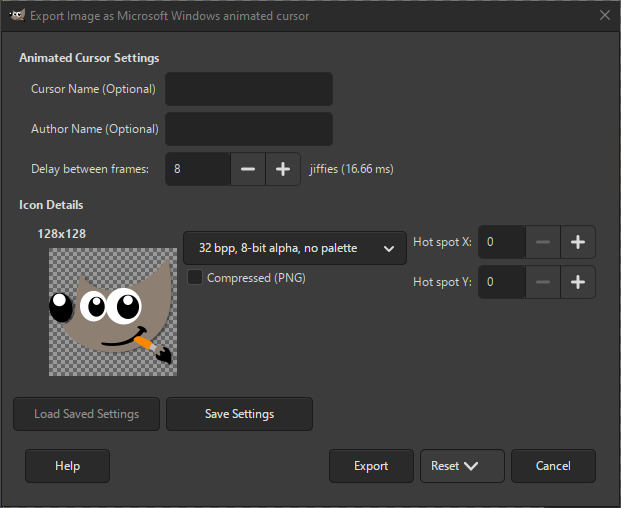
The Microsoft Windows Animated Cursor (ANI) format is used on Windows for displaying animated cursors.
It is closely related to the non-animated Microsoft Windows Cursor. The export dialog shows all the frames (layers) available. For each cursor frame, there are several settings that can be changed. The settings related to Icon Details have the same meaning as for non-animated cursors.
- Параметри анімованого вказівника
-
- Назва вказівника (необов'язкова)
-
You can enter a name for your animated cursor here, but it is not required.
- Author Name (Optional)
-
You can enter the name of the author (creator) of your animated cursor here, but it is not required.
- Затримка між кадрами
-
This setting determines the delay between frames, i.e. how fast frames will be shown. This delay is measured in so-called «jiffies». A jiffie equals 16.66 milliseconds. The default is 8 jiffies or a little over 133 ms.
- Тип збереження
-
For each cursor size you can select in what format it should be saved. The available choices are:
- 1 біт/точку, 1-біт альфа-каналом, 2-кольорова палітра
-
Indexed format with only two colors.
- 4 біта/точку, 1-біт альфа-канал, 16-кольорова палітра
-
Indexed format with only 16 colors.
- 8 біт/точку, 1-біт альфа-канал, 256-кольорова палітра
-
Indexed format with up to 256 colors.
- 24 біт/точку, 1-біт альфа-канал, без палітри
-
Для RGB без каналу прозорості.
- 32 біт/точку, 8-біт альфа-канал, без палітри
-
The most common format is RGB with alpha channel.
- Стиснений (PNG)
-
When checked, the icons are saved as compressed PNG images. Note that not all programs support reading this type of icon.
- Hot spot X, Hot spot Y
-
These values set the location of the hot spot for this cursor.


