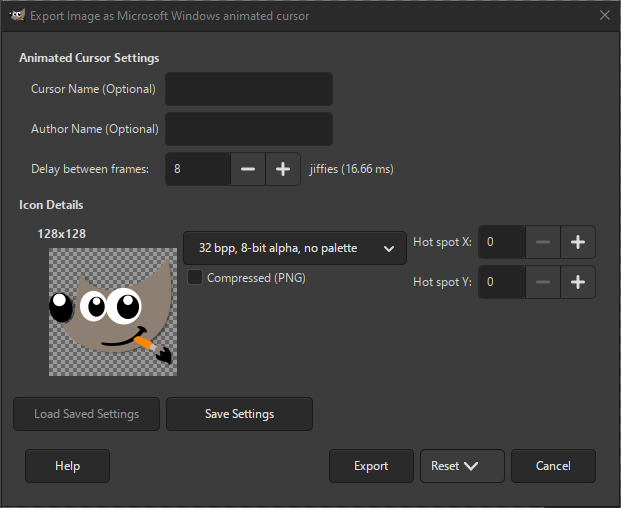
Formatet Microsoft Windows Animated Cursor (ANI) vert brukt i Windows for å visa animerte markørar.
Det er nært knytt til den ikkje-animerte Microsoft Windows Cursor. Eksportvindauget viser alle tilgjengelege rammer (lag). For kvar markørramme er det fleire innstillingar som kan endrast. Innstillingane knytt til Icon Details betyr det same som for ikkje-animerte markørar.
- Innstillingar for animert markør
-
- Markørnamn (valfritt)
-
Om ønskjeleg kan du skriva inn namnet på den animerte markøren her, med det trengst ikkje.
- Forfattarnamn (valfritt)
-
Om ønskjeleg kan du skriva inn namnet på utviklaren her, med det er ikkje naudsynt.
- Pause mellom rammene
-
Innstillinga her bestemmer pausen mellom rammene, altså kor raskt rammene vert viste. Pausen vert gjeve i såkalla «jifffies» som er 16,66 millisekund. Standard er 8 jiffies, altså litt meir enn 133 ms.
- Lagra type
-
Du kan velja formatet for kvar markørstorleik som skal lagrast. Vala er:
- 1 bpp, 1-bit alfa, 2-slot palett
-
Indeksert format med berre to fargar.
- 4 bpp, 1-bit alfa, 16-slot palett
-
Indeksert format med berre 16 fargar.
- 8 bpp, 1-bit alfa, 256-slot palett
-
Indeksert format med opp til 256 fargar.
- 24 bpp, 1-bit alfa, ingen palett
-
For RGB utan alfakanal.
- 32 bpp, 8-bit alfa, ingen palett
-
Det mest vanlege er RGB med alfakanal.
- Komprimert (PNG)
-
Når denne er merkt, vert ikonet lagra som komprimert PNG-bilete. Merk at ikkje alle program kan lesa denne ikontypen.
- Lenkjeområde X, Lenkjeområdet Y
-
Desse verdiane vert brukte for å setja plasseringa av lenkjeområde for denne markøren.


