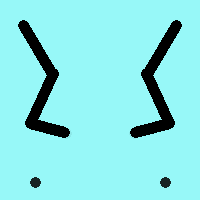
La pintura de simetria és compatible amb eines basades en el pinzell (llapis, pinzell, goma d'esborrar, aerògraf, pinzell MyPaint, clona, empastifa, aclareix/crema), així com l'eina tinta. Hi ha diversos tipus de simetria, totes configurables.
Podeu accedir a aquest diàleg des del menú principal: → →
El diàleg «Simetria de pintura» és un diàleg acoblable. Mireu Secció 2.3, «Diàlegs i acobladors» per a obtenir més informació.
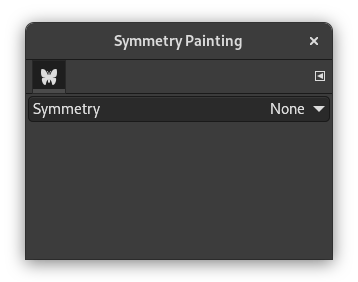
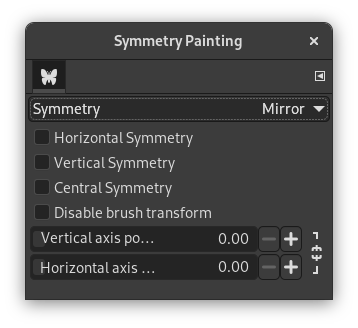
Aquest diàleg és molt senzill. Només teniu un element Simetria amb una llista desplegable que ofereix quatre opcions. Quan verifiqueu un tipus de simetria, els eixos de simetria apareixen com a línies verdes puntejades a la finestra d'imatge; podeu començar a pintar-hi amb el pinzell que heu triat.
Opcions
- Symmetry
-
This setting determines the type of symmetry painting.
- Cap
-
This is the default. It disables symmetry painting.
- Mirall
-
This type of symmetry will reflect all strokes like in a mirror. There are several types of mirroring. More than one type can be selected.
Mirror Options
- Horizontal symmetry
-
Brush strokes will be mirrored across a horizontal axis.
- Vertical symmetry
-
Brush strokes will be mirrored across a vertical axis.
- Central symmetry
-
Brush strokes will be inverted through a central point.
- Disable brush transform
-
When you transform the drawing, the brush itself will end up transformed as well. For instance, in a mirror transform, not only will your drawing on the right side of the canvas be mirrored on the left, but the brush itself is also «flipped» on the left.
If you want the drawn lines to be mirrored (or other transformation), but not the brush outline itself, enable this setting. Obviously, you will only notice the effect of this setting when you use a brush that is not symmetrical.
- Vertical axis position, Horizontal axis position
-
The default position for symmetry axes is the center of the image. These sliders allow you to change the position used to mirror your brush strokes.
By clicking the lock icon next to the sliders, you can choose whether you want to keep both sliders synchronized or not.
- Enrajolat
-
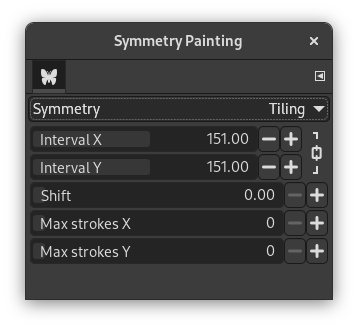
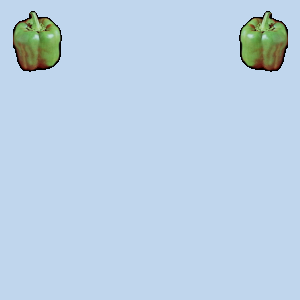
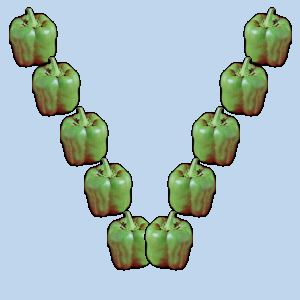
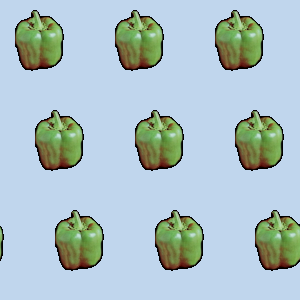
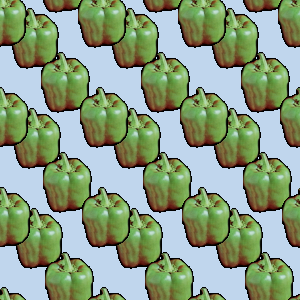
«Tiling» is a translational symmetry, which can be finite (with a maximum of strokes) or infinite. In the latter case, it is the perfect tool to create patterns or seamless tiles.
This mode covers the image with strokes at regular distances on the X and Y axis.
Tiling Options
- Interval X, Interval Y
-
These are the intervals on the X and Y axis, in pixels, between the centers of each stroke.
- Maj
-
This determines the amount of shift between lines on the X axis, in pixels.
- Max strokes X, Max strokes Y
-
These are the maximum number of brush strokes on the X and Y axis that will be painted on the image. The default is 0, which means there is no limit.
By clicking the lock icon next to the sliders, you can choose whether you want to keep both sliders synchronized or not.
- Mandala
-
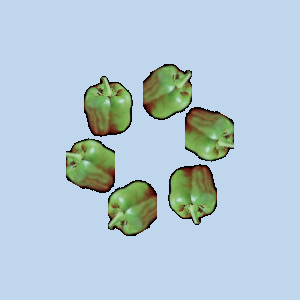
Strokes are drawn around the center determined by the options below.
Mandala Options
- Center abscissa, Center ordinate
-
These coordinates determine the center around which the mandala strokes will be painted.
By clicking the lock icon next to the sliders, you can choose whether you want to keep both sliders synchronized or not.
- Number of points
-
This determines the amount of strokes that will be performed each time you use a brush.
- Disable brush transform
-
See the same setting for Mirror symmetry.
- Kaleidoscope
-
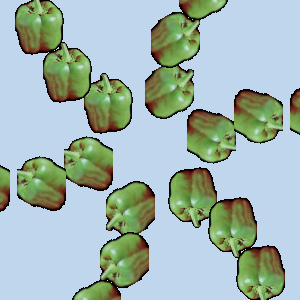
When enabled, it mirrors consecutive strokes.