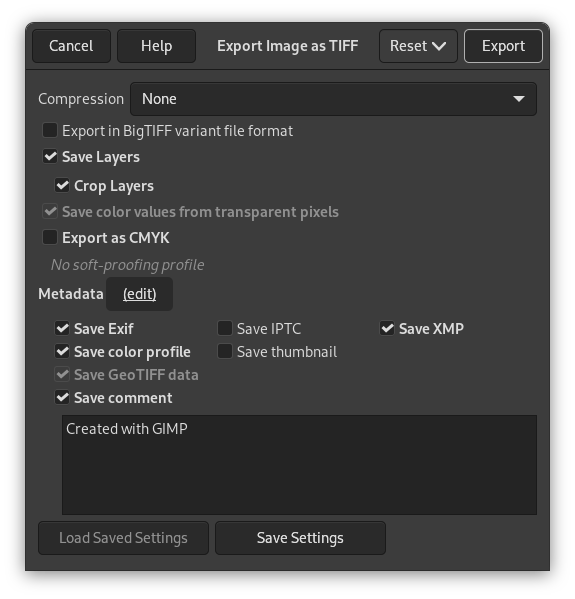
- Komprimering
-
Med denne indstilling kan du vælge den algoritme, der skal anvendes til komprimering af billedet.
- Ingen
-
No compression is used. This is fast, and lossless, but the resulting file can be very large.
- LZW
-
The image is compressed using the “Lempel-Ziv-Welch” algorithm, a lossless compression technique. This is efficient and fast. More information at [WKPD-LZW].
- Pack Bits
-
This is a fast, simple compression scheme for run-length encoding of data. Apple introduced the PackBits format with the release of MacPaint on the Macintosh computer.
A PackBits data stream consists of packets of one byte of header followed by data. (Source: [WKPD-PACKBITS])
- Deflate
-
This is a lossless data compression algorithm that uses a combination of the LZ77 algorithm and Huffman coding. It is also used in Zip and Gzip files and PNG images. Source: [WKPD-DEFLATE].
- JPEG
-
This is a very good compression algorithm but lossy. This is the same compression as used in JPEG images. Since it is lossy, you should not use this when image quality is important. This compression can not be used when your image is in indexed mode.
- CCITT Group 3 fax, CCITT Group 4 fax
-
These are black and white formats developed to transfer images by FAX.
![[Bemærk]](images/note.png)
Bemærk Disse komprimeringstilstande kan kun vælges, hvis billedet er indekseret og reduceret til to farver. Brug → → for at ændre billedet til indekserede farver. Sørg for at vælge “Brug sort og hvid (1 bit) palet”.
- Gem lag
-
When enabled, each layer will be stored as a separate page in the TIFF image, starting from the bottom. When disabled, only the merged result will be stored.
Bemærk Not all image viewers support loading more than the first page of a TIFF image. Since the background layer is what we store first, it may be better to disable this setting if other programs you work with can't handle that.
- Beskær lag
-
Når Gem lag er markeret, vil denne indstilling, som er aktiveret som standard, ændre størrelsen på alle lag til billedets størrelse. TIFF-billeder kan ikke have negative forskydninger. Denne indstilling gør det muligt at importere TIFF'en igen uden at skulle ændre placeringen af lag, der havde en anden størrelse end det oprindelige billede.
- Gem farveværdier fra gennemsigtige pixels
-
Med denne indstilling gemmes farveværdierne, også selvom pixlerne er helt gennemsigtige.
- Eksportér som CMYK
-
If you have a CMYK profile assigned to your image as soft-proofing profile, this setting can be checked to have your image exported using that CMYK profile. This is sometimes required when you have your image professionally printed. Your printing company will tell you if this is needed.
If this setting is disabled, you don't have a soft-proofing profile set for this image yet. See assigning a Soft-Proof Profile.
The name of the CMYK profile that is assigned to this image will be shown below this setting.
- Metadata (redigér)
-
You can click the “(edit)” link to open the metadata editor to change or add any metadata that you want to be included in the image. Note: you will also still need to enable the relevant metadata saving options listed below.
The metadata settings in the export dialog override the default values set in your Metadata Export Preferences.
- Gem Exif-data
-
When this option is enabled, EXIF metadata will be saved in the exported image.
- Gem IPTC-data
-
When this option is enabled, IPTC metadata will be saved in the exported image.
- Gem XMP-data
-
When this option is enabled, XMP metadata will be saved in the exported image.
- Gem farveprofil
-
When this option is enabled, the color profile will be saved in the exported image.
- Gem miniature
-
When this option is enabled a thumbnail will be saved in the exported image as part of the EXIF metadata. This will also cause certain EXIF tags to be saved, even if you have disabled saving EXIF metadata.
- Gem GeoTIFF-data
-
Når denne indstilling er aktiveret, gemmes GeoTIFF-metadata, der var til stede i det oprindelige billede, i det eksporterede TIFF-billede.
- Gem kommentar
-
Her kan du aktivere lagring af en kommentar, der er knyttet til billedet. Kommentaren kan indtastes i tekstfeltet under denne mulighed.


