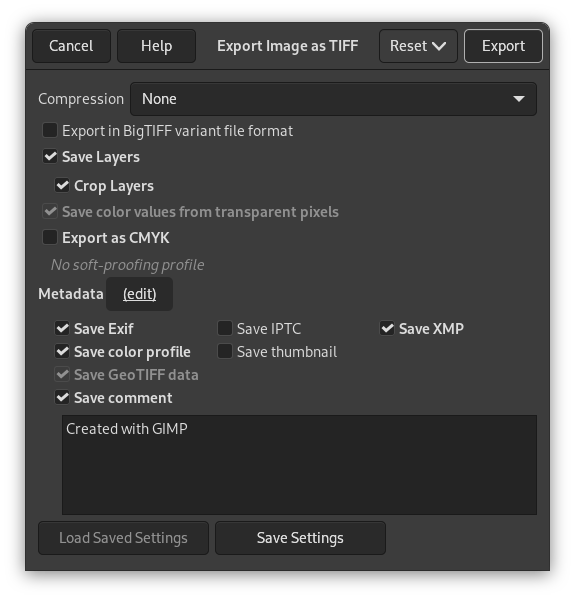
- Compressie
-
Met deze optie kunt u het algoritme specificeren voor het comprimeren van de afbeelding.
- Niets selecteren
-
Er wordt geen compressie gebruikt. Dat is snel en verliesloos, maar het resulterende bestand kan behoorlijk groot zijn.
- LZW
-
De afbeelding wordt gecomprimeerd met het algoritme “Lempel-Ziv-Welch”, een verliesloze methode voor comprimeren. Dit is efficiënt en snel. Meer informatie op [WKPD-LZW].
- Pack Bits
-
Dit is een snel, eenvoudig compressieschema voor het coderen van de run-lengte van de gegevens. Apple introduceerde de indeling PackBits bij de uitgave van MacPaint op de Macintosh-computer.
Een gegevensstroom van PackBits bestaat uit pakketten van een byte als kop, gevolgd door gegevens. (Bron: [WKPD-PACKBITS])
- Deflate
-
Dit is een verliesloos algoritme voor het comprimeren van gegevens dat een combinatie gebruikt van het algoritme LZ77 en Huffman-coderen. Het wordt ook gebruikt in Zip- en Gzip-bestanden en afbeeldingen PNG. Bron: [WKPD-DEFLATE].
- JPEG
-
Dit is een heel goed algoritme voor comprimeren, maar met verlies. Dit is dezelfde compressie als dat welk wordt gebruikt in afbeeldingen JPEG. U zou, omdat het met verlies is, dit niet moeten gebruiken als de kwaliteit van de afbeelding belangrijk is. Deze compressie kan niet worden gebruikt als uw afbeelding in de modus Geïndexeerd staat.
- CCITT Groep 3 fax, CCITT Groep 4 fax
-
Dit zijn indelingen voor zwart/wit-afbeeldingen, ontworpen voor het verzenden van afbeeldingen via een FAX.
![[Opmerking]](images/note.png)
Opmerking Deze twee methoden voor comprimeren kunnen slechts worden geselecteerd, als de afbeelding in de modus Geïndexeerd staat en is verkleind tot twee kleuren. Gebruik → → om de afbeelding te converteren naar de modus Geïndexeerd. Zorg ervoor dat “Gebruik zwart en wit palet (1-bit)” is geselecteerd.
- Lagen opslaan
-
Indien ingeschakeld zal elke laag worden opgeslagen als een afzonderlijke pagina in de afbeelding TIFF, beginnend vanaf onder. Indien uitgeschakeld zal alleen het samengevoegde resultaat worden opgeslagen.
Opmerking Niet alle programma's voor het bekijken van afbeeldingen ondersteunen het laden van meer dan de eerste pagina van een afbeelding TIFF. Omdat de achtergrondlaag de eerste is die we opslaan, zou het beter kunnen zijn om deze instelling uit te schakelen als andere programma's waar u mee werkt dit niet kunnen afhandelen.
- Lagen bijsnijden
-
Als Lagen opslaan is geselecteerd, zal deze optie, die standaard is ingeschakeld, de grootte van alle lagen op de grootte van de afbeelding brengen. Afbeeldingen TIFF kunnen geen negatieve verschuivingen hebben. Deze optie stelt u in staat de TIFF opnieuw te importeren, zonder de positie van de lagen te moeten wijzigen, die een andere grootte hadden als de afbeelding in het origineel.
- Kleurwaarden van transparante beeldpunten opslaan
-
Wanneer dit is ingeschakeld worden de kleurwaarden opgeslagen, zelfs als de pixels volledig transparant zijn.
- Exporteren als CMYK
-
Als u een CMYK-profiel hebt toegewezen aan uw afbeelding als profiel voor afdrukvoorbeeld, kan deze instelling worden geselecteerd om uw afbeelding te laten exporteren met dat CMYK-profiel. Dat is soms vereist als u uw afbeelding professioneel laat afdrukken. Het bedrijf dat uw afbeelding afdrukt zal u dat, als dat nodig is, vertellen.
Als deze instelling is uitgeschakeld, heeft u nog geen profiel voor afdrukvoorbeeld ingesteld voor deze afbeelding. Bekijk het toewijzen van een Profiel afdrukvoorbeeld.
De naam van het CMYK-profiel dat is toegewezen aan deze afbeelding zal onder deze instelling worden weergegeven.
- Metagegevens (bewerken)
-
U kunt op de link “(bewerken)” klikken om de bewerker voor de metadata te openen om metadata te wijzigen of toe te voegen, die u wilt hebben opgenomen in de afbeelding. Opmerking: u zult nog steeds de relevante opties voor het opslaan van de metadata, die hieronder zijn vermeld, moeten inschakelen.
De instellingen voor de metadata in het dialoogvenster voor exporteren overschrijven de standaard waarden die zijn ingesteld in uw Voorkeuren voor exporteren van metadata.
- Exif-gegevens opslaan
-
Wanneer deze optie is ingeschakeld, zullen EXIF-metagegevens worden opgeslagen in de geëxporteerde afbeelding.
- IPTC-gegevens opslaan
-
Wanneer deze optie is ingeschakeld, zullen IPTC-metagegevens worden opgeslagen in de geëxporteerde afbeelding.
- XMP-gegevens opslaan
-
Wanneer deze optie is ingeschakeld, zullen XMP-metagegevens worden opgeslagen in de geëxporteerde afbeelding.
- Kleurprofiel opslaan
-
Wanneer deze optie is ingeschakeld, zal het kleurprofiel worden opgeslagen in de geëxporteerde afbeelding.
- Miniatuur opslaan
-
Wanneer deze optie is ingeschakeld zal een miniatuur worden opgeslagen als deel van de EXIF-metagegevens. Dit zal ervoor zorgen dat bepaalde tags voor EXIF ook worden opgeslagen, zelfs als u het opslaan van metagegevens van EXIF hebt uitgeschakeld.
- GeoTIFF-gegevens opslaan
-
Wanneer deze optie is ingeschakeld, worden GeoTIFF-metagegevens die aanwezig waren in de oorspronkelijke afbeelding opgeslagen in de geëxporteerde TIFF-afbeelding.
- Opmerking opslaan
-
Hier kunt u het opslaan van een opmerking, die is gekoppeld aan de afbeelding, inschakelen. De opmerking kan worden ingevoerd in het tekstvak onder deze optie.


