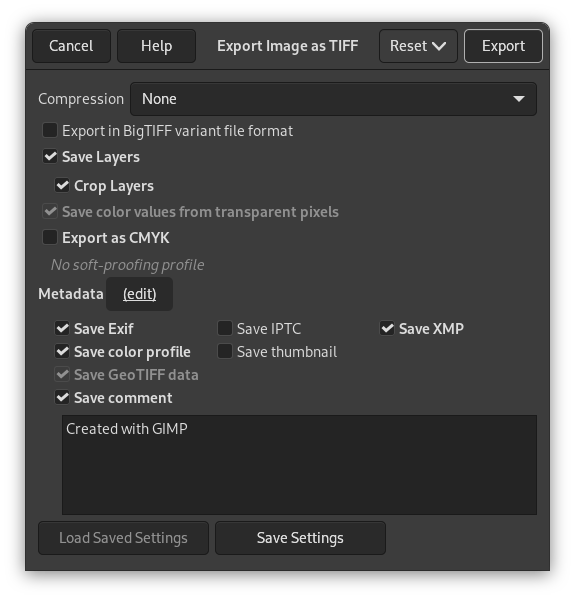
- Komprimering
-
I denne innstillinga kan du setja algoritmen for komprimeringa av biletet.
- Ingen
-
Ingen kompresjon brukt. Rask, utan tap, men fila kan verta svært stor.
- LZW
-
Biletet er komprimert med «Lempel-Ziv-Welch»-algoritmen. Dette er ein effektiv og rask tapsfri teknikk: Meir informasjon på [WKPD-LZW].
- Pack Bits
-
Ein rask, enkel kompresjon for «run-length» koding av data. PackBits-formatet vart introdusert av Apple då MacPaint vart teke i bruk på Macintosh datamaskinen.
Ein PackBits datastraum er sett saman av pakker med 1 bytes header etterfølgd av data. (Kjelde: [WKPD-PACKBITS])
- Deflate
-
Dette er ein algoritme for tapsfri komprimering. Metoden er ei blanding av «LZ77» algoritmen og «Huffman-Koding». Den same metoden vert også brukt i filformata Zip, Gzip og PNG. Kjelde: [WKPD-DEFLATE].
- JPEG
-
Dette er ei svært god, men ikkje tapsfri, komprimeringsalgoritme. Dette er same komprimeringa som vert brukt i JPEG-bilete. Sidan det ikkje er tapsfritt, bør du ikkje bruka det på bilete der kvaliteten er viktig. Denne komprimeringa kan ikkje brukast på indekserte bilete.
- CCITT Gruppe 3 faks, CCITT Group 4 faks
-
Dette er komprimeringsmetodar brukte for telefaks i svart/kvitt.
![[Notat]](images/note.png)
Notat Desse to komprimeringsmetodane kan berre brukast dersom biletet er indeksert med to fargar. Bruk menyvalet → → for å omforma biletet til indeksert med «Bruk svart og kvit (1-bit) palett».
- Lagra laga
-
Når denne er slått på, vert kvart lag lagra som åtskilde sider i TIFF-biletet byrja nedanfrå. Når denne er slått av, vert det samanfletta resultatet lagra.
Notat Ikkje alle program for å visa bilete kan opna meir enn den første sida av eit TIFF-bilete. Sidan det er bakgrunnslaget som vert lagra først, kan det vera betre å slå av denne innstillinga viss programmet du brukar ikkje kan handsama dette.
- Klipp laga
-
Når det er merkt av for Lagra laga, vil dette alternativet, som er slått på som standard, endra storleiken på alle laga til storleiken på biletet. TIFF-bilete kan ikkje ha negative forskyvingar. Dette alternativet let deg importera TIFF på nytt utan å måtta endra posisjonen til lag som hadde ein annan storleik i originalen.
- Lagra fargeverdiar frå gjennomsiktige pikslar
-
Gjer at fargeverdiane for pikslane vert lagra, sjølv om pikslane er komplett gjennomsiktige.
- Eksporter som CMYK
-
Viss du har sett biletprofilen til CMYK for utskriftsimulering, kan du bruka denne innstillinga for å eksportera biletet med CMYK-profilen. Dette kan av og til vera nødvendig når du skal skriva ut biletet. Trykkeriet vil i tilfelle seia i frå om det trengst.
Viss denne innstillinga er slått av, har du ingen profil for utskriftsimulering for dette biletet. Sjå korleis du set dette i Utskriftsimuleringsprofil.
Namnet på CMYK-profilen som er i bruk vert vist nedanfor innstillingane.
- Metadata (rediger)
-
Du kan trykkja på lenkja «(rediger)» for å opna eit vindauge der du kan endra eller leggja til kva metadata som helst som skal leggjast til i biletet. Merk: Du må likevel slå på dei relevante innstillingane for å lagra metadata lista opp nedanfor.
Innstillingane for metadata i eksportvindauget overskriv standardverdiane sett i Innstillingane for metadataeksport.
- Lagra EXIF-data
-
Når dette valet er slått på, vert alle EXIF metadata lagra i det eksporterte biletet.
- Lagra IPTC-data
-
Når dette valet er slått på, vert alle IPTC metadata lagra i det eksporterte biletet.
- Lagra XMP-data
-
Når dette valet er slått på, vert alle XMP metadata lagra i det eksporterte biletet.
- Lagra fargeprofilen
-
Når dette valet er slått på, vert fargeprofilen lagra i det eksporterte biletet.
- Lagra miniatyren
-
Når dette alternativet er slått på, vert det lagra ein miniatyr som ein del av EXIF-dataa. Dette gjer at fleire Exif-taggar vert lagra sjølv om du har slått av å lagra EXIF metadata.
- Lagra Geo TIFF-data
-
Når dette alternativet er slått på, vert GeoTIFF metadata som finst i originalen lagra i det eksporterte TIFF-biletet.
- Lagra merknad
-
Her kan du slå på å lagra ein merknad som er sett inn i biletet. Merknaden kan skrivast inn i teksboksen nedanfor dette valet.


