JPEG files usually have the extension .jpg or .jpeg. It is a very widely used format, because it compresses images very efficiently, while minimizing the loss of image quality. It does not, however, support transparency, animation or multiple layers.
In the past, the jpeg format was considered the best choice when the file size was a concern due to its good compression. However, nowadays there are several other formats that surpass jpeg in reducing file size. Some examples supported by GIMP are HEIF, JPEG xl and WebP.
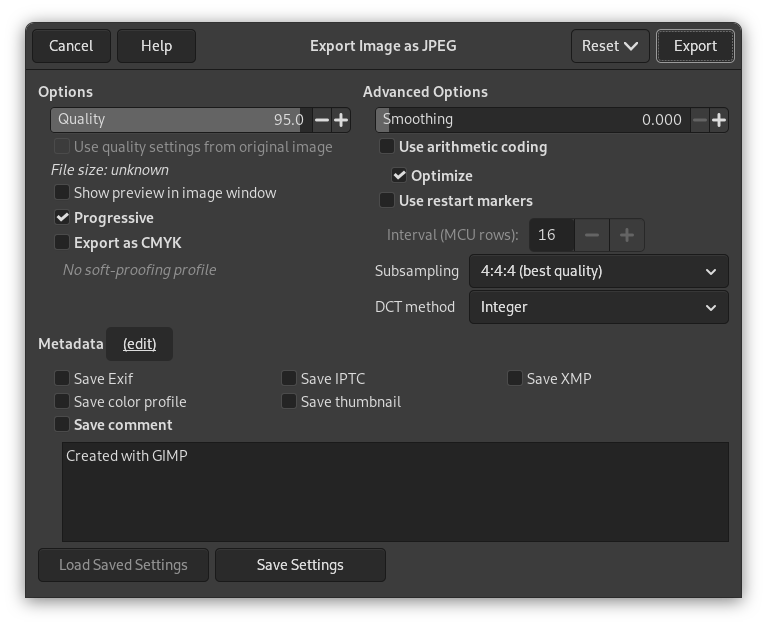
The JPEG algorithm is quite complex, which is reflected in its options. Most JPEG specific settings, except Quality, are usually left alone unless you understand what the effects of the setting are.
- Kokybė
-
The Quality level ranges from 0 to 100 and is an indication of the amount of expected artifacts. Because jpeg is a lossy format, there will always be a certain amount of loss of quality. For this reason, it is generally not a good idea to save jpeg images after altering them again and again, because each time you will loose a little more detail.
Values above 95, or even 90, are rarely useful and high values significantly increase the size of your jpeg images. The default quality of 85 usually produces excellent results, but in many cases it is possible to set the quality substantially lower without noticeably degrading the image. You can test the effect of different quality settings by checking Show Preview in image window in the JPEG dialog.
![[Pastaba]](images/note.png)
Pastaba Please note, that the numbers for the JPEG quality level have a different meaning in different applications. Saving with a quality level of 80 in GIMP is not necessarily comparable with saving with a quality level of 80 in a different application.
- Naudoti originalaus paveikslėlio kokybės parametrus
-
If a particular quality setting (or „quantization table“) was attached to the image when it was loaded, then this option allows you to use them instead of the standard ones.
Jei paveikslėlyje padarėte tik kelis pakeitimus, naudodami tuos pačius kokybės parametrus gausite beveik tokią pačią kokybę ir tokį pat failo dydį kaip originalaus paveikslėlio. Tai sumažins kvantizacijos sukeliamus kokybės praradimus, kurie atsitiktų naudojant kitus kokybės parametrus.
Jei originalaus failo kokybės parametrai yra ne geresni nei jūsų numatytieji kokybės parametrai, tuomet parinktis „ Naudoti originalaus paveikslėlio kokybės parametrus “ bus prieinama, tačiau neįjungta. Taip užtikrinama, kad visada gautumėte bent mažiausią jūsų numatytuose parametruose nurodytą kokybę. Jei paveikslėlyje nepadarėte didelių pakeitimų ir norite jį išsaugoti, naudojant tokią pačią kokybę kaip ir originale, tai galite padaryti įjungdami šią parinktį.
- Show preview in image window
-
Checking this option causes each change in quality (or any other JPEG parameter) to be shown in the image display. (This does not alter the image: the image reverts back to its original state when the JPEG dialog is closed.)
Enabling this setting allows you to see an estimate of the file size of the jpeg image. Note this estimate does not include the metadata. If you enabled some or all of the metadata settings, the size will be more than shown, depending on the amount of metadata that was added to your image.
- Sudėtingesnės parinktys
-
Informacija apie sudėtingesnius parametrus:
- Glotninimas
-
JPG compression creates artifacts. By using this option, you can smooth the image when saving, reducing them. But your image becomes somewhat blurred.
- Progresyvus
-
With this option enabled, the image chunks are stored in the file in an order that allows progressive image refinement during a slow connection web download. The progressive option for JPG has the same purpose as the interlace option for GIF. Unfortunately, the progressive option produces slightly larger JPG files (than without the progressive option).
Pastaba Beware that certain older TVs and photo frames (and maybe other devices) may not be able to show jpeg images that have been exported with the progressive setting enabled (which is the default).
- Export as CMYK
-
If you have a CMYK profile assigned to your image as soft-proofing profile, this setting can be checked to have your image exported using that CMYK profile. This is sometimes required when you have your image professionally printed. Your printing company will tell you if this is needed.
If this setting is disabled, you don't have a soft-proofing profile set for this image yet. See assigning a Soft-Proof Profile.
The name of the CMYK profile that is assigned to this image will be shown below this setting.
- Use arithmetic coding
-
Arithmetic encoding is a form of entropy encoding (a lossless data compression scheme) that can be used in exporting as JPEG. Images using arithmetic encoding can be 5 - 10 % smaller. But older software may have trouble opening these images.
- Optimizuoti
-
If you enable this option, the optimization of entropy encoding parameters will be used. The result is typically a smaller file, but it takes more time to generate.
- Use restart markers
-
The image file can include markers which allow the image to be loaded as segments. If a connection is broken while loading the image in a web page, loading can resume from the next marker.
- Interval (MCU rows)
-
JPEG images are stored as a series of compressed square tiles named MCU (Minimum Coding Unit). You can set the size of these tiles (in pixels).
- Poimtis
-
The human eye is not sensitive in the same way over the entire color spectrum. The compression can use this to treat slightly different colors that the eye perceives as very close, as identical colors. The following methods are available:
- 4:4:4 (best quality)
-
This produces the best quality, preserving borders and contrasting colors, at the cost of not compressing as well as the other methods.
- 4:2:2 (chroma halved horizontally)
-
This is the standard subsampling, which usually provides a good ratio between image quality and file size. There are situations, however, in which using no subsampling (4:4:4) provides a noticeable increase in the image quality; for example, when the image contains fine details such as text over a uniform background, or images with almost-flat colors.
- 4:4:0 (chroma halved vertically)
-
This is similar to 4:2:2, but chroma is reduced in the vertical direction.
- 4:2:0 (chroma quartered)
-
This produces the smallest files. This suits images with weak borders but tends to denature colors.
- DCT metodas
-
DCT is „discrete cosine transform“, and it is the first step in the JPEG algorithm going from the spatial to the frequency domain. The choices are:
- Fast Integer
-
This method is much less accurate than the other methods, but faster.
- Integer
-
This method is faster than Floating-Point, but not as accurate. This is the default.
- Floating-Point
-
This is slightly more accurate than the integer method, but is much slower unless your machine has very fast floating-point hardware. Also note that the results of the floating-point method may vary slightly across machines, while the integer methods should give the same results everywhere.
- Metadata (edit)
-
You can click the „(edit)“ link to open the metadata editor to change or add any metadata that you want to be included in the image. Note: you will also still need to enable the relevant metadata saving options listed below.
The metadata settings in the export dialog override the default values set in your Metadata Export Preferences.
- Save Exif data
-
When this option is enabled, EXIF metadata will be saved in the exported image.
- Save IPTC data
-
When this option is enabled, IPTC metadata will be saved in the exported image.
- Išsauogti XMP duomenis
-
When this option is enabled, XMP metadata will be saved in the exported image.
- Save color profile
-
When this option is enabled, the color profile will be saved in the exported image.
- Save thumbnail
-
When this option is enabled a thumbnail will be saved in the exported image as part of the EXIF metadata. This will also cause certain EXIF tags to be saved, even if you have disabled saving EXIF metadata.
- Save comment
-
You can read this comment in the Image Properties.


