De opdracht geeft het dialoogvenster “Selectiebewerker” weer. Dit dialoogvenster geeft de actieve selectie in de huidige afbeelding weer en geeft u gemakkelijk toegang tot aan de selectie gerelateerde opdrachten. Het is niet echt bedoeld om direct selecties te bewerken, maar als u werkt aan een selectie, is het handig om alle opdrachten voor de selectie bij de hand te hebben, omdat het gemakkelijker is om op een knop te drukken dan om naar opdrachten te zoeken in de boom met opdrachten of de menubalk. De “Selectiebewerker” biedt ook enkele geavanceerde opties voor de opdracht “Selectie naar pad”.

- De knoppen
-
Het dialoogvenster “Selectiebewerker” heeft verscheidene knoppen voor gemakkelijke toegang tot opdrachten voor selecties:
-
 De knop Alles selecteren.
 -
 De knop Niets selecteren.
 -
 De knop Selectie omkeren.
 -
 De knop Opslaan naar kanaal.
 -
 De knop Selectie naar pad. Als u de Shift-toets ingedrukt houd bij het klikken op deze knop, wordt het dialoogvenster Geavanceerde instellingen weergegeven. Bekijk het volgende gedeelte voor details over deze opties.
 -
 De knop Selectie belijnen.
-
- Het weergavevenster
-
In het weergavevenster zijn geselecteerde gebieden van de afbeelding wit, niet-geselecteerde gebieden zijn zwart en gedeeltelijk geselecteerde gebieden zijn tinten grijs. Klikken op dit venster werkt als in Selecteren op kleur. Bekijk het voorbeeld hieronder.
Afbeelding 16.20. Voorbeeld van het klikken in het weergavevenster “Selectiebewerker”
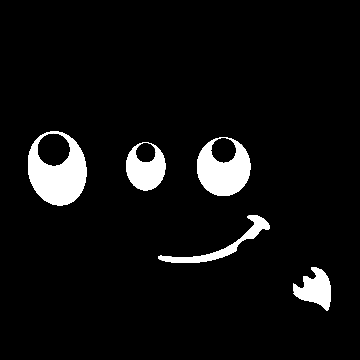
Venster Selectiebewerker na klikken.

Afbeelding met resulterende selectie toegepast.
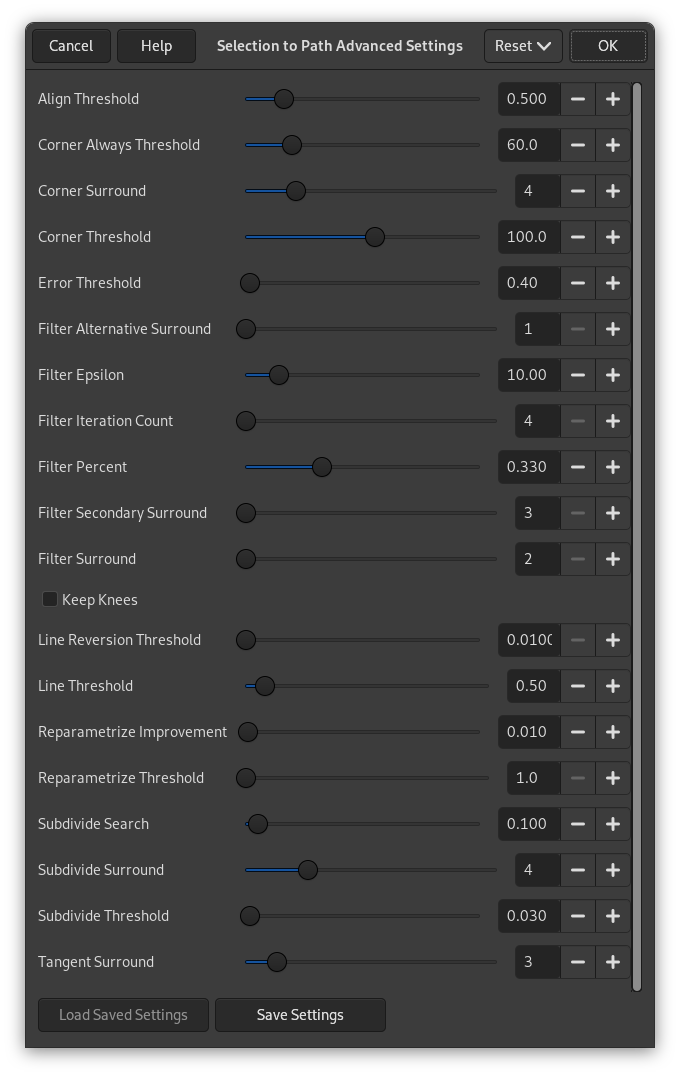
Het dialoogvenster “Geavanceerde instellingen 'Selectie naar pad'”, dat u krijgt door met Shift ingedrukt te klikken op de knop , bevat een aantal opties, de meeste waarvan u kunt instellen met ofwel een schuifbalk of een tekstvak. Er is ook een keuzevak. Deze opties worden meestal gebruikt door gevorderde gebruikers. Zij zijn:
- Drempelwaarde voor uitlijnen
-
Als twee eindpunten dichter bij elkaar zijn dan deze waarde, dan worden ze gelijk gemaakt.
- Hoek altijd drempelwaarde
-
Als de hoek die is gedefinieerd door een punt en zijn voorgangers en opvolgers kleiner is dan dit, is het een hoek, zelfs als deze binnen de beeldpunten Omgeving hoek van een punt met een kleinere hoek ligt.
- Omgeving hoek
-
Aantal punten om te bepalen of een punt een hoek is of niet.
- Drempelwaarde hoek
-
Als een punt, z'n voorgangers en z'n opvolgers een hoek bepalen die kleiner is dan dit, is het een hoek.
- Drempel fout
-
Hoeveelheid fout waarmee een uitgevoerde spline [6] niet acceptabel is. Als enig beeldpunt verder dan dit weg is van de uitgevoerde curve, probeert het algoritme het opnieuw.
- Filter Alternatieve omgeving
-
Een tweede aantal nabij liggende punten om in overweging te nemen tijdens het filteren.
- Filter Ypsilon
-
Als de hoeken tussen de vectorpunten, die worden geproduceerd door Filter Omgeving en Filter Alternatieve omgeving meer dan dit van elkaar verschillen, gebruik dan die van Filter Alternatieve omgeving.
- Aantal herhalingen filter
-
Het aantal keren waarmee de originele gegevenspunten gladder moeten worden gemaakt. Dramatisch verhogen van dit aantal, tot 50 of zo, kan enorm betere resultaten produceren. Maar als er enige punten die hoeken “zouden” moeten zijn, niet worden gevonden, wordt de curve onvoorspelbaar rondom dat punt.
- Filterpercentage
-
Om het nieuwe punt aan te maken, gebruikt u het oude punt plus dit aantal keren de buren.
- Filter Secundaire omgeving
-
Aantal nabij liggende punten om te beoordelen of punten Filter Omgeving een rechte lijn definiëren.
- Filter Omgeving
-
Aantal nabij liggende punten om mee te nemen bij het filteren.
- Knieën behouden
-
Dit keuzevak vertelt of punten “knie” al dan niet moeten worden verwijderd na het zoeken van de omtrek.
- Drempel lijnomkering
-
Als een kromme dichter bij een rechte lijn is dan dit, blijft het een rechte lijn, zelfs als het anders veranderd zou worden in een curve. Dit wordt bepaald door het kwadraat van de lengte van de curve, waardoor kortere curves eerder teruggezet worden.
- Lijndrempel
-
Hoeveel pixels (gemiddeld) een kromme van de lijn, bepaald door zijn eindpunten, mag afwijken, voordat het veranderd wordt in een rechte lijn.
- Verbetering door nieuwe parameter
-
Als nieuwe parameters de passing niet beter maken dan met dit percentage, dan stopt het algoritme ermee.
- Drempel voor nieuwe parameters
-
Foutgehalte waarbij het zinloos is om nieuwe parameters te gebruiken. Dit gebeurt, bijvoorbeeld, als het algoritme probeert de omtrek van de buitenzijde van een “O” passend te maken met een enkele spline. De initiële passing is niet goed genoeg voor de iteratie Newton-Raphson om die te verbeteren. Het zou kunnen zijn dat het beter zou zijn de gevallen te detecteren waarin het algoritme in het geheel geen hoeken vond.
- Zoeken onderverdelen
-
Percentage van de curve verwijderd van het slechtste punt om naar een betere plek voor onderverdeling te zoeken.
- Omgeving onderverdelen
-
Aantal punten om in ogenschouw te nemen om te beslissen of een gegeven punt een betere plek is om onder te verdelen.
- Drempel onderverdelen
-
Hoeveel pixels een punt kan afliggen van een rechte lijn en nog steeds als een betere plek kan worden gezien om onder te verdelen.
- Tangens omgeving
-
Aantal punten waarnaar aan elke zijde van een punt moet worden gekeken wanneer de benadering van de raaklijn op dat punt wordt berekend.


